How does it work?
the first page of the notebook: it's all written here
What is LearnVocab?
A vocabulary notebook for university prep students and anyone learning English. Not a dictionary you glance at and leave: you find a word, add it to your notebook, it comes back before you forget it, you see it while reading and in the end you use it in your own sentence.
recognise
Dictionary and Practice
Find the word, learn its meaning, remember it with Learn & Pass and exercises.
see
Reading
See the word in a real text; tap the one you don't know and its meaning appears.
use
Writings
Write a few sentences and see what you got right and wrong.
how does a day go?
- 1Check the word of the day and your waiting reviews on Home.
- 2Go through 10 cards in Learn & Pass; it takes a few minutes and completes the day's streak.
- 3If you have time, take a Quick Quiz.
- 4Read a text or write a few sentences.
None of it is required; every section is always open. Start wherever you like.
1.Looking up words in the Dictionary
The Dictionary is where the words live. You can search in English or in Turkish.


- 1Type an English word or a Turkish meaning into the search box (typing "karar" brings up decide, decision).
- 2Tap one of the suggestions that appear as you type; you don't have to type the whole word. If you made a typo, you'll see "Did you mean?"; typing "went" takes you to go.


- 3On a word page every meaning stands on its own: the Turkish meaning in bold, the English definition in grey and an example sentence with the word highlighted in yellow.
- 4The US and UK buttons play the American and British pronunciation.
- 5"Add to my list" puts the word on your list; Learn & Pass will ask you about it again at set intervals.
- 6"more examples" and "Patterns" open in place. Double-tap a word in an example sentence to go to that word's page.
2.Working with ready-made lists
Ready-made lists are word lists put together for an exam or an institution. They sit on the first page of the Dictionary, grouped by institution (Bilkent, METU, Cambridge and others).


- 1Open a list to see its words with their meanings; you can tap "Add to my list" one by one. There's no add-all button, so you won't drown in hundreds of words.
- 2Tap "Study with this list" and the list is added to the lists you can pick when you start Learn & Pass; in lists split into weeks, pick a week and tap "Study these words".
3.My List
My List is the pocket notebook of the words you've added. It's the second tab of the Dictionary.


- 1Search your list in English or in Turkish (typing "hedef" finds aim).
- 2Filter: sort by newest, oldest or A→Z; the last week or month; "Struggled with" shows the words you didn't know or got wrong in exercises.
- 3With "Select" you can tick several words and remove them together.
- 4"remove" takes the word off your list. If you removed it by mistake, "Undo" shows up for a few seconds.
4.Learn & Pass
The heart of the site: you see a word and decide whether you know it. A few minutes are enough, you can stop any time, and every answer is saved instantly.


- 1When you tap "Start swiping now" in Learn & Pass, you first choose where the words come from. "My List": the words in your list plus new words for your level.
- 2Lists you chose with "Study with this list" in the ready-made lists are here too; weekly lists show which week.
- 3The bin removes the list from this screen.
- 4Once you pick a list, use the slider to set how many words come from My List and how many from that list. Then tap "Start".


- 5The card only shows the word. Think of its meaning.
- 6If you don't know it, swipe left or tap "I don't know"; the meaning appears.
- 7If you know it, swipe right or tap "I know".
- 8There's a flame on the bar at the top: it lights up when you reach 10 cards that day and the day's streak is complete.


- 9After "I know" the capybara shows the meaning: "Is this what you thought?"
- 10If it isn't, say "No, I was wrong"; the word goes back into your review queue.
- 11If it is, "Yes, I'm sure". Nobody tests you; being honest is enough.
- 12Tapped the wrong thing? "Undo".
We ask you again about the words you've added 1, 3, 7 and 21 days later. You can change the ratio of reviews to new words in Settings.
Go to Learn & Pass →5.Exercises: Quick Quiz and Practice Test
The second tab of Practice. There are two kinds; no points or grades, a wrong answer only teaches.


- 1The Quick Quiz is enough most days: the meanings of the words on your list, both ways (English→Turkish and back). No settings.
- 2It asks 10 questions; fewer if your list has fewer words.
- 3Tap "Start". After each question the answer appears in a single line; at the end you can redo the ones you got wrong.


- 4The Practice Test is for days when you want to do more: first choose how many questions (5, 10, 15, 20).
- 5Then choose the question type: "Mixed" asks from all of them, or you can focus on a single type. The types are below.
Question types in the Practice Test
- Word ↔ meaning From your list, both ways
- reluctant → isteksiz
- Word ↔ English definition From your list
- unwilling to do sth → reluctant
- Which form fits? Word families at your level
- She sang ___. (happy / happily)
- Linkers and expressions Sentences at your level
- ___, it was cheap. (However)
- Collocations make, take, do, give, have
- ___ a decision → make
- Past and past participle like go · went · gone, independent of your list
- go · ___ · gone
- Matching From your list, four words at a time
- 4 words ⇄ 4 meanings
- Synonym / opposite / simpler Words that aren't on your list
- big = large · hot ≠ cold
6.Reading
To see words inside a text. You can read the texts in the library or add your own (as a PDF or by pasting); only you can see your own texts.


- 1Tap a word you don't know; its meaning pops up in a bubble right away. Inflected forms like "decided" lead to their root, and phrases like "give up" are recognised.
- 2If it has several meanings, they're all numbered and short; the most common one comes first.
- 3Use "Add to my list" to save the word while you read. Tap the same word again to close the bubble.
- 4Tap "bookmark" and then a word to mark where you stopped; when you come back, "go to mark" takes you there. The mark is saved on this device.
7.Writings
The way to really know a word is to use it. Here you can do free writing.


- 1Free writing: first pick a type: Everyday (3–8 sentences) or Academic (1–3 paragraphs; formal tone, hedging and logic are checked too). You get feedback in your language: what you did well and your real mistakes (quote → correct form → short reason), with a score out of 5. Style choices don't count as mistakes.
- 2The number of texts you can write per day is limited; your remaining count is shown here. If the evaluation can't be done right away, your text isn't lost; it gets evaluated later on its own.
8.Streak
When you study a little every day, one more day gets ticked on your calendar.


- 1On Home, tap "calendar ›" on the streak card. One of these completes a day: 10 Learn & Pass cards, 10 exercise questions or 1 text.
- 2Streak freeze: if you miss a day and have a freeze left, that day is frozen automatically and your streak survives. You start with 1 freeze and earn another after 5 days in a row; you can save up to 3.
- 3On the calendar the days you studied are orange and frozen days are blue. A day ends at 00:00 your time.
9.Settings: make the site yours
Tap your profile photo at the top right to open your Account; Settings is there. Every change you make is saved right away; there's no save button.


- 1Appearance: light, dark or "system" (your device's theme). You can also switch it with the moon/sun button at the top. This choice is stored on your device.
- 2Language: the site's language (Türkçe, English, Deutsch). You can also change it with the globe button at the top; if you're logged in, your choice is saved to your account.


- 3Turkish meanings: if you turn this off, Turkish meanings are neither shown nor asked; cards, reading and exercises use English definitions instead. This is independent of the site's language.
- 4Level: you can take the level test again. The word of the day and the exercises match your level; it also adjusts itself as you study.


- 5Review / new word ratio in Learn & Pass: slide left to review the words on your list more, slide right to see more new words.
- 6Questions per exercise: the Practice Test starts with this number.
- 7Feedback on writings: how detailed your mistakes are shown (gentle, normal, strict).
Further down you'll also find autoplaying audio in tests, notification preferences, downloading your data as a file and irreversible actions (clearing your list, deleting your account).
Go to Settings →+Add as an app
opens from its icon on your phone, runs full screen
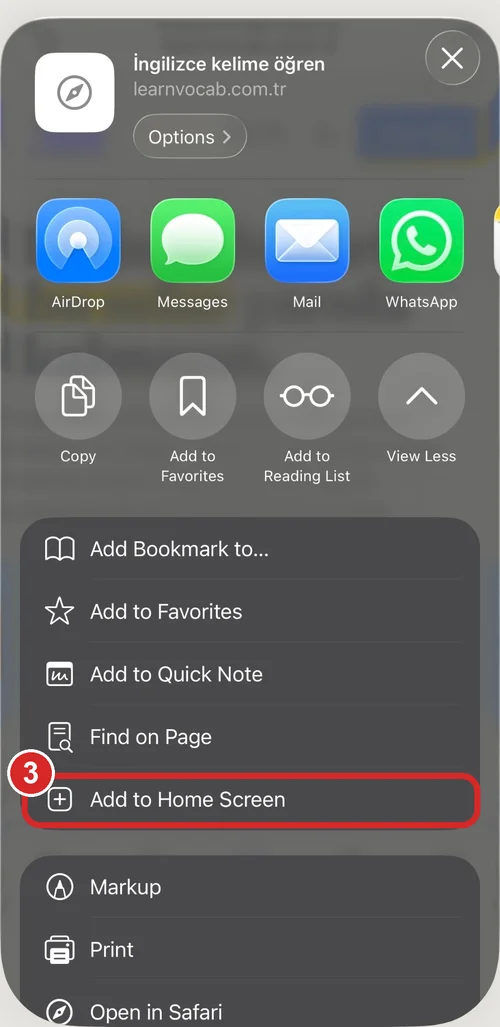
iPhone · Safari
- Open the site in Safari.
- Tap the Share button at the bottom (the square with an up arrow).
- Choose "Add to Home Screen", then tap "Add".

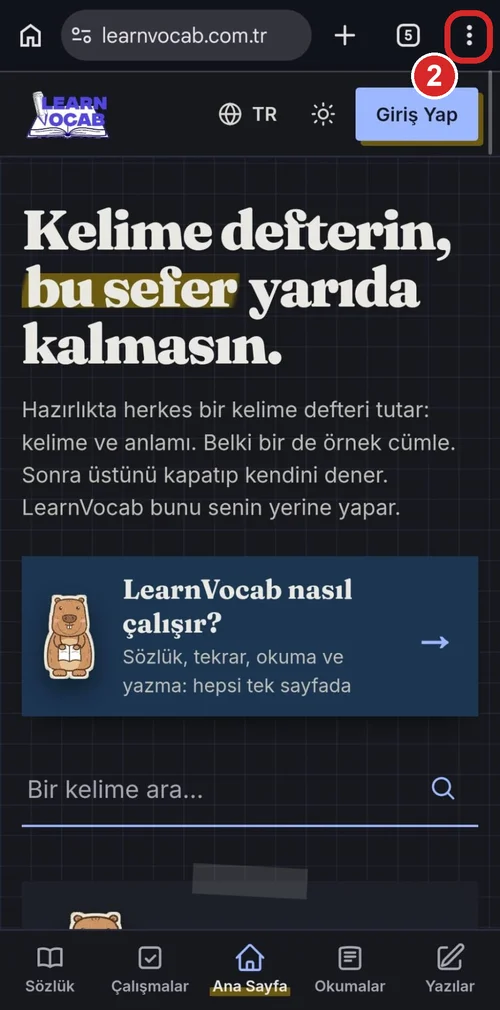
Android · Chrome
- Open the site in Chrome.
- Tap the three dots at the top right.
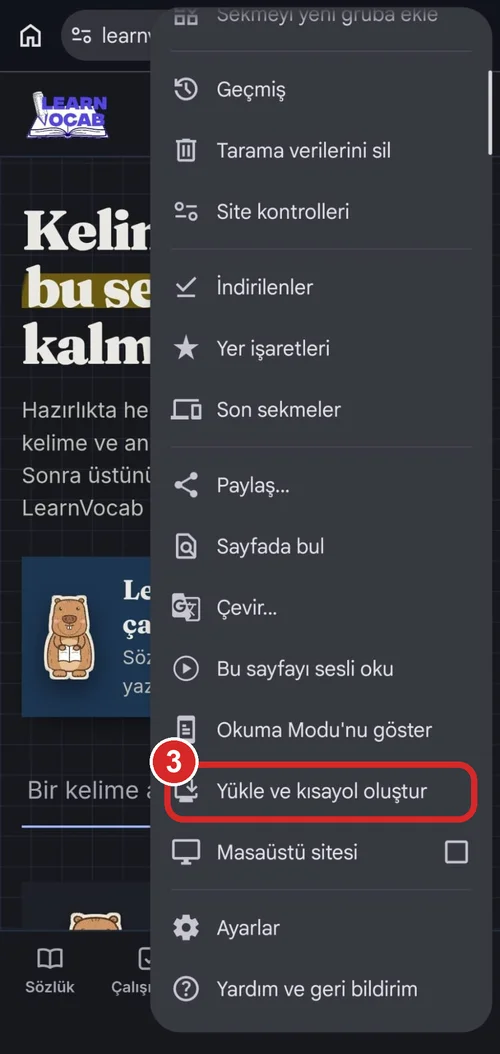
- Choose "Install and create shortcut" (or "Install app").
- In the window that opens, tap "Install".

On iPhone, notifications only work after the site is added to the Home Screen this way.
Who made this site?
Hi, I'm Efe Solmaz. In 2025 I got into Computer Engineering at METU (ODTÜ); I started writing LearnVocab during my prep year to solve my own problem with learning vocabulary.
Writing words and meanings into my phone's notes app didn't work. The sites and apps I tried were either just dictionaries or gave everyone the same template. I wanted three things: to see a word in a real sentence, to have it come back before I forget it, and to be able to use it in my own sentence. This site was made for those three things.
I work with Python and Java; I'm building the site on my own. If you see a bug or have a suggestion, write to me — I read everything.
— Efe